How WordPress Uses Your Database
WordPress stores almost everything in a MySQL (or MariaDB) database. When you install WordPress, it creates 12 core tables. Here's what each one does:
wp_posts stores every post, page, custom post type, revision, and attachment record
wp_postmeta holds metadata for each post (custom fields, SEO data, page builder settings)
wp_options contains site settings, plugin configurations, widget data, and transients
wp_comments and wp_commentmeta store comments and their associated metadata
wp_users and wp_usermeta hold user accounts and profile data
wp_terms, wp_term_taxonomy, and wp_term_relationships manage categories, tags, and custom taxonomies
wp_links is a legacy table from the old blogroll feature (rarely used)
Plugins add their own tables on top of these. A WooCommerce store might have 30+ additional tables for orders, products, subscriptions, and analytics. A membership plugin adds tables for access rules, payment logs, and user activity. An LMS plugin creates tables for courses, lessons, quizzes, and student progress.
The more plugins you run, the bigger your database gets. And WordPress doesn't clean up after itself very well.
What Causes Database Bloat in WordPress
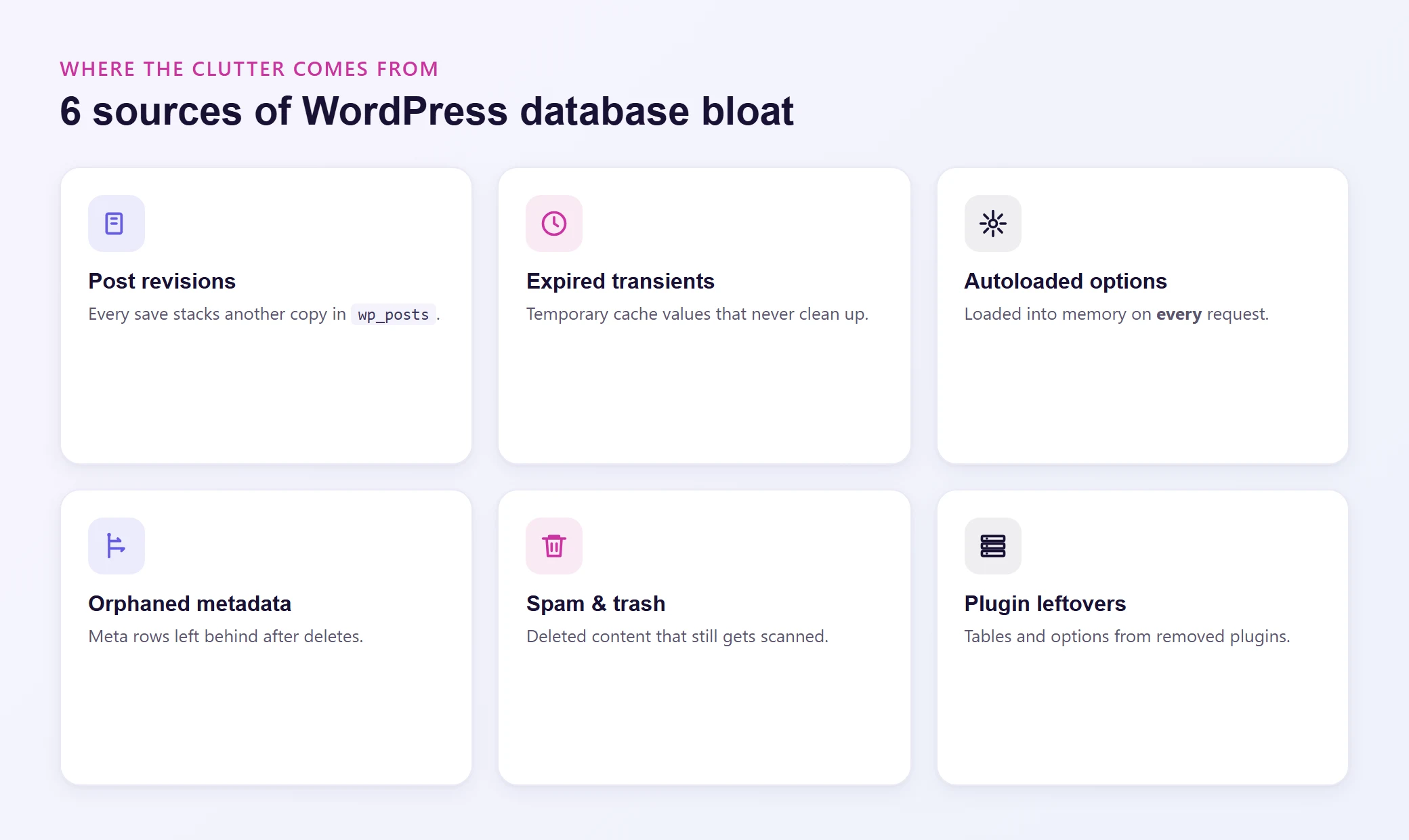
Before you start deleting things, it helps to understand where the bloat comes from. These are the most common offenders.
Post Revisions
WordPress saves a new revision every time you hit "Save Draft" or "Update" on a post. If you edited a blog post 40 times before publishing, you now have 40 copies of that post sitting in wp_posts.
For a small blog, this isn't a big deal. For a WooCommerce store with thousands of products, or a membership site with hundreds of course lessons, revisions can balloon your wp_posts table by 5x or more.
Expired Transients
Transients are temporary cached values that WordPress and plugins store in wp_options. They're supposed to expire and get cleaned up automatically. In practice, many expired transients stick around forever. Some plugins create thousands of them.
The real problem isn't the disk space. It's that wp_options has an autoload column, and many transients are set to autoload on every single page request. More on that in a moment.
The wp_options Autoload Problem
This is the single biggest performance killer most site owners never know about. The wp_options table has an autoload column that's either "yes" or "no." Every row marked "yes" gets loaded into memory on every page load, whether it's needed or not.
A fresh WordPress install autoloads about 100KB of options. A site with 30 plugins can easily autoload 2MB or more. Some poorly written plugins store serialized arrays of megabytes in autoloaded options. That's 2MB of data loaded from the database and parsed by PHP on every single request.
When you delete a post, WordPress removes the row from wp_posts but doesn't always clean up the associated rows in wp_postmeta. The same thing happens with comments, users, and terms. These orphaned rows serve no purpose and slow down meta queries.
Spam and Trashed Content
WordPress moves deleted content to the trash rather than removing it. Old spam comments pile up in wp_comments. Trashed posts, pages, and WooCommerce orders linger in wp_posts. All of these rows get scanned during queries even though you'll never use them.
Plugin Leftovers
When you deactivate and delete a plugin, most plugins leave their database tables and options behind. After a few years of trying different plugins, you can end up with dozens of abandoned tables and hundreds of orphaned option rows.
Before You Touch Anything: Back Up
Database optimization means deleting data. If you delete the wrong thing, you could break your site. Before running any cleanup operation:
Create a full backup of your database. On Levamo, you can take an on-demand snapshot from the dashboard in one click.
Test on staging first if you're nervous. Levamo's one-click staging lets you clone your site and experiment without risk.
Note your current performance baseline. Run a few page loads and note the response times so you can measure the improvement after cleanup.
If you have hourly backups enabled, you can roll back to a point within the last hour if something goes wrong. For sites running WooCommerce or processing membership signups, this is worth the $10/month.
Cleaning Post Revisions
You have two options: limit future revisions and delete existing ones.
Limit Future Revisions
Add this line to your wp-config.php file to cap revisions at a reasonable number:
define('WP_POST_REVISIONS', 5);
This keeps the 5 most recent revisions for each post and prevents unlimited accumulation going forward. You can set it to false to disable revisions entirely, but keeping a few gives you a safety net for undoing recent changes.
Delete Old Revisions
Using WP-CLI (the fastest method for large sites):
wp post delete $(wp post list --post_type='revision' --format=ids) --force
This finds every revision in your database and permanently deletes them. On a site with 10,000+ revisions, this can reclaim hundreds of megabytes.
Using SQL directly (if you have database access through phpMyAdmin or a similar tool):
DELETE FROM wp_posts WHERE post_type = 'revision';
DELETE FROM wp_postmeta WHERE post_id NOT IN (SELECT ID FROM wp_posts);
The second query cleans up the orphaned metadata left behind after deleting the revisions.
How Much Space Will This Save?
It depends on your site. A 3-year-old blog with 200 posts and no revision limit can easily have 5,000+ revision rows. A WooCommerce store with custom product descriptions that get edited frequently can have even more. Deleting revisions typically reduces wp_posts table size by 40% to 80%.
Cleaning Transients
Expired transients should clean themselves up, but they often don't. Here's how to force the cleanup.
Using WP-CLI:
wp transient delete --expired
To delete all transients (including non-expired ones that will regenerate automatically):
wp transient delete --all
Using SQL:
DELETE FROM wp_options WHERE option_name LIKE '_transient_%';
DELETE FROM wp_options WHERE option_name LIKE '_site_transient_%';
After deleting transients, plugins will recreate the ones they need on the next page load. This is safe. You're not losing any permanent data.
Fixing the wp_options Autoload Problem
This optimization alone can shave 100ms or more off every page load. Here's how to audit and fix it.
Check Your Current Autoload Size
Run this SQL query to see how much data is being autoloaded:
SELECT SUM(LENGTH(option_value)) AS autoload_size
FROM wp_options
WHERE autoload = 'yes';
If the result is over 1MB, you have a problem. Over 500KB is worth investigating.
Find the Biggest Offenders
SELECT option_name, LENGTH(option_value) AS size
FROM wp_options
WHERE autoload = 'yes'
ORDER BY size DESC
LIMIT 20;
This shows you the 20 largest autoloaded options. You'll often find plugin analytics data, serialized widget settings, or massive option arrays from plugins you've already deleted.
Turn Off Autoload for Non-Critical Options
For options that don't need to load on every request, you can switch them to non-autoloaded:
UPDATE wp_options SET autoload = 'no'
WHERE option_name = 'some_plugin_analytics_data';
Be conservative here. Only change options you're sure aren't needed on every page load. Plugin settings that affect front-end behavior should stay autoloaded. Analytics logs, migration data, and unused plugin options can safely be switched off.
WordPress 6.6+ Autoload Values
If you're running WordPress 6.6 or newer, the autoload column supports additional values beyond just "yes" and "no." WordPress now uses "on," "off," "auto-on," and "auto-off" for more granular control. The "auto" variants let WordPress decide based on actual usage patterns. When you're manually updating autoload values, use "on" and "off" instead of the legacy "yes" and "no."
Removing Orphaned Data
Orphaned metadata rows accumulate silently. These queries clean them up.
Orphaned Post Meta
DELETE pm FROM wp_postmeta pm
LEFT JOIN wp_posts p ON pm.post_id = p.ID
WHERE p.ID IS NULL;
DELETE cm FROM wp_commentmeta cm
LEFT JOIN wp_comments c ON cm.comment_id = c.comment_ID
WHERE c.comment_ID IS NULL;
DELETE um FROM wp_usermeta um
LEFT JOIN wp_users u ON um.user_id = u.ID
WHERE u.ID IS NULL;
Orphaned Term Relationships
DELETE tr FROM wp_term_relationships tr
LEFT JOIN wp_posts p ON tr.object_id = p.ID
WHERE p.ID IS NULL;
On a site that's been running for a few years with regular plugin changes, these queries can remove thousands of useless rows.
Cleaning Spam and Trash
wp comment delete $(wp comment list --status=spam --format=ids) --force
Or via SQL:
DELETE FROM wp_comments WHERE comment_approved = 'spam';
Empty the Trash
WordPress automatically empties the trash after 30 days by default. To empty it immediately:
wp post delete $(wp post list --post_status=trash --format=ids) --force
You can also change the trash retention period in wp-config.php:
define('EMPTY_TRASH_DAYS', 7);
Setting this to 7 days keeps trash from piling up without removing content too aggressively.
Optimizing Database Tables
After deleting a bunch of data, the physical table files don't shrink automatically. MySQL/MariaDB leaves "holes" in the table where deleted rows used to be. The OPTIMIZE TABLE command defragments the table and reclaims that space.
Using WP-CLI
wp db optimize
This runs OPTIMIZE TABLE on every table in your WordPress database.
Using SQL
OPTIMIZE TABLE wp_posts, wp_postmeta, wp_options, wp_comments, wp_commentmeta, wp_usermeta;
Repairing Corrupted Tables
If you're seeing database errors or your site crashed during a write operation, you may have corrupted tables. Add this to wp-config.php temporarily:
define('WP_ALLOW_REPAIR', true);
Then visit yoursite.com/wp-admin/maint/repair.php to run the built-in repair tool. Remove the constant from wp-config.php after you're done, because this repair page is accessible without authentication.
Removing Leftover Plugin Tables
Deleted plugins often leave their tables behind. Here's how to find and remove them.
Identify Non-Core Tables
WordPress core tables all follow the pattern wp_{tablename} (or whatever your prefix is) and there are exactly 12 of them. Anything beyond those 12 was created by a plugin or theme.
To list all tables in your database:
wp db tables
Compare this list against your currently active plugins. If you see tables from plugins you removed months ago, they're safe to drop.
Drop Unused Tables
DROP TABLE wp_old_plugin_table;
Only drop tables from plugins you're certain you won't reinstall. If you're unsure, rename the table instead of dropping it:
RENAME TABLE wp_old_plugin_table TO wp_backup_old_plugin_table;
If your site runs fine for a month, you can safely drop the renamed table.
Using a Plugin for Ongoing Maintenance
If you'd rather not run SQL queries manually, several plugins handle database cleanup through a visual interface.
WP-Optimize is the most popular option. It cleans revisions, drafts, transients, spam comments, and orphaned data. It can also schedule automatic cleanups on a weekly or monthly basis. The free version handles most use cases.
Advanced Database Cleaner goes deeper, identifying orphaned tables and options left by deleted plugins. It's particularly useful for sites that have gone through many plugin changes over the years.
WP-Sweep takes a more conservative approach, using proper WordPress functions (like wp_delete_post_revision()) instead of raw SQL queries. This ensures all associated data gets cleaned up through WordPress hooks.
Whichever plugin you use, always run a backup before the first cleanup. After that, scheduled weekly or monthly cleanups keep bloat from building up again.
Scheduling Regular Maintenance
Database optimization isn't a one-time task. WordPress accumulates bloat continuously. Here's a practical maintenance schedule:
Weekly: Delete spam comments and clear expired transients. This takes seconds and prevents the two fastest-growing sources of bloat from getting out of hand.
Monthly: Delete old post revisions (keeping the most recent 5), clean orphaned metadata, and optimize tables. This is your main cleanup pass.
Quarterly: Audit wp_options autoload size, check for abandoned plugin tables, and review your overall database size trend. If it's growing faster than your content, something is creating unnecessary data.
You can automate the weekly and monthly tasks with WP-Optimize's scheduler or set up WP-CLI cron jobs if you prefer command-line control.
How Levamo's Stack Helps
Your hosting environment has a direct impact on database performance. Here's what Levamo provides that makes your optimized database run even faster.
MariaDB instead of MySQL. Levamo runs MariaDB, which is a drop-in replacement for MySQL built by MySQL's original creators. MariaDB's query optimizer handles complex WordPress queries more efficiently, particularly the multi-table JOINs that WooCommerce and membership plugins generate. You get better performance without changing a single line of code.
KeyDB + Redis object caching. Available on Business plans and above, object caching stores frequently accessed query results in memory. Once you've cleaned your database, the cached responses are smaller and faster to serve. A clean database plus object caching is the best combination for logged-in user performance.
Daily backups with one-click restore. Every Levamo plan includes daily automatic backups, so you can clean your database with confidence. If something goes wrong, you restore to the previous day in one click. For WooCommerce stores and membership sites where data changes hourly, hourly backups are available as a $10/month add-on.
One-click staging. Test your cleanup process on a staging copy before touching production. Levamo's staging includes a "use less storage" option that skips copying your uploads folder, so you can spin up a test environment without doubling your disk usage.
Measuring the Results
After running your cleanup, here's how to verify it worked.
Check Database Size
wp db size --tables
Compare this against what you noted before the cleanup. A 30% to 60% reduction in total database size is common for sites that have never been optimized.
Check Autoload Size
Run the autoload query from earlier and compare. Getting under 500KB is a good target.
Test Page Load Times
Load a few pages and check response times in your browser's developer tools (the "Waiting for server response" or TTFB value). You should see a noticeable improvement, especially on pages that run heavy database queries like WooCommerce shop pages, membership dashboards, and course listings.
Monitor Over Time
Check your database size monthly. If it's growing faster than your actual content, investigate which plugin or process is creating the excess data. The wp_options table is usually the first place to look.
Wrapping Up
A bloated WordPress database is one of those problems that creeps up slowly. Everything works fine until one day it doesn't, and by then you've got thousands of orphaned rows, megabytes of autoloaded options, and more post revisions than actual posts.
The good news is that cleaning it up is straightforward. Limit revisions, purge transients, audit your autoloaded options, remove orphaned data, and optimize your tables. Do it once thoroughly, then schedule regular maintenance so it never gets that bad again. Pair that clean database with Levamo's MariaDB engine and object caching, and your WordPress site will feel like it just got a new set of tires.