Seeing the mixed content error on your WordPress site? Don’t worry, this guide will show you exactly how to fix mixed content issues in WordPress step by step, so your site stays secure and fully HTTPS compliant.
Also read: WordPress White Screen of Death
What Is the Mixed Content Issue in WordPress?
A mixed content issue happens when your WordPress site loads secure (HTTPS) and non-secure (HTTP) resources on the same page. These insecure elements, like images, scripts, or stylesheets, can weaken your site’s security and trigger browser warnings for visitors.
Why Does the Mixed Content Error Appear on WordPress Sites?
Typically, the error appears after migrating a site from HTTP to HTTPS. If some old URLs or hardcoded links still use HTTP, browsers detect the mismatch and flag it as mixed content.
How to Detect Mixed Content Issue WordPress
The fastest way to check for a mixed content issue on your WordPress site is by inspecting the browser’s address bar.
If mixed content exists, browsers may show a warning such as “Not secure”, or display a broken padlock icon beside your website URL. The message often says, “Your connection to this site is not fully secure.”
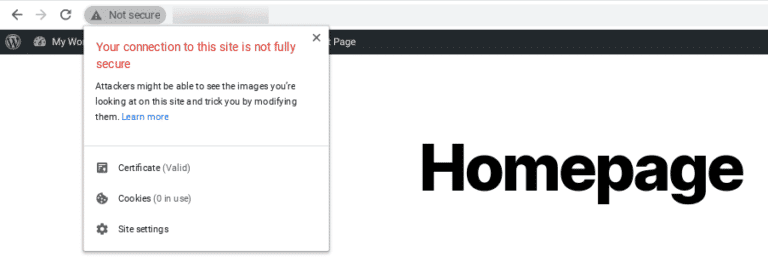 Not secure Warning in Chrome
To locate the exact elements causing mixed content:
-
Open your website in Google Chrome.
-
Click the three dots (top-right corner) and select More tools → Developer tools.
(Shortcut: Ctrl + Shift + I on Windows/Linux, Cmd + Option + I on Mac.)
-
In Developer Tools, click the Console tab.
Chrome will list all insecure elements (like images or scripts) loading over HTTP.
This method gives you a clear view of which assets you need to update to fix the mixed content issue in WordPress.
How to Fix Mixed Content Issue WordPress (3 Proven Methods)
We’ll guide you through three ways to fix mixed content issue in WordPress, starting from the easiest method.
Method 1: Use a Plugin to Fix Mixed Content Automatically
If you can access your WordPress dashboard, a plugin is the quickest fix:
-
Install and activate Really Simple SSL from the WordPress plugin directory.
-
Go to Settings → SSL and enable the recommended settings.
-
The plugin will automatically update insecure content URLs and force HTTPS across your site.
This works for most WordPress sites and requires minimal configuration.
Method 2: Manually Update Links in Your WordPress Database
If the plugin doesn’t resolve everything, some links may be hardcoded. You can bulk-update them with a search-and-replace plugin:
-
Install and activate Better Search Replace.
-
Navigate to Tools → Better Search Replace.
-
In Search for, enter your site’s HTTP URL (e.g., http://example.com).
In Replace with, enter the HTTPS version (e.g., https://example.com).
-
Select all database tables.
-
Run a dry run first to preview changes.
-
If the results look accurate, uncheck dry run and run the actual replacement.
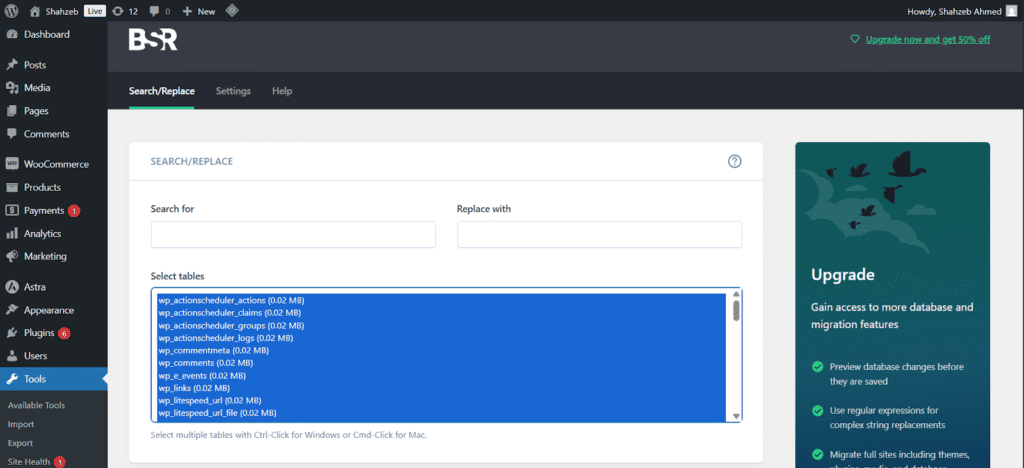 Better Search Replace Plugin
Important: Always back up your site before making database changes.
Method 3: Force HTTPS Using the .htaccess File
If you’re comfortable editing server files, use .htaccess to enforce HTTPS:
Edit the file and add this code at the bottom:
RewriteEngine On
RewriteCond %{HTTPS} !=on
RewriteRule ^ https://%{HTTP_HOST}%{REQUEST_URI} [L,R=301]
- Save the file and reload your website.
This ensures all traffic automatically redirects to HTTPS, helping fully fix mixed content issue WordPress.
-
Always upload media via HTTPS.
-
Use relative URLs when embedding resources.
-
Regularly scan your site after plugin or theme updates.
These habits can prevent you from needing to fix mixed content issue WordPress repeatedly.
All Your Websites.
One Powerful Platform.
With the Multiple Site Plans, now you can
launch 5, 10, or 100+ websites on a single Hyperspeed platform.
Get Early Bird Pricing Now
Why Fixing Mixed Content Issue in WordPress Matters
Mixed content weakens your site’s security, breaks trust with visitors, and can hurt SEO rankings. Fixing it ensures full encryption, stronger SEO performance, and no browser warnings.
Frequently Asked Questions (FAQs)
How Do I Fix Mixed Content on a WordPress Site?
You can fix mixed content on a WordPress site by updating HTTP links to HTTPS manually, using plugins like Really Simple SSL, or forcing HTTPS via .htaccess rules. A combination of these methods ensures all site resources load securely.
Why Is Fixing the Mixed Content Warnings Important?
Fixing mixed content warnings is crucial because they compromise your site’s security and can scare away visitors with browser alerts. Resolving them ensures full encryption, protects user data, and improves your site's credibility.
How Can I Find Mixed Content Errors on My Site?
Use browser developer tools (Console tab) to see mixed content warnings, or scan your site with tools like Why No Padlock. You can also search your site's source code for insecure http:// links.
Looking for blazing-fast, secure hosting to avoid mixed content headaches? Check out fully managed WordPress hosting by Levamo, optimized for speed, security, and peace of mind.
Regular website maintenance and monitoring are key to minimizing the occurrence of this error.