When you're browsing through your WordPress site and you're met with a fatal error message, it could be due to a plugin conflict, or your theme decided to throw a tantrum. Either way, you probably can’t even open the WordPress dashboard to fix the problem, and you're panicking...
Don’t worry. This is a straightforward guide on how to access WordPress admin with a fatal error warning and restore your site.
What is a WordPress Fatal Error Warning?
A WordPress fatal error is the moment your site slams into a wall and refuses to move. Under the hood, WordPress is powered by PHP. Every theme, plugin, and core file leans on PHP to load the features your visitors rely on. When a PHP script blows up, WordPress cannot finish its start-up routine. The result is a white screen, a scary “There has been a critical error on this website” notice, or a login page that goes nowhere.
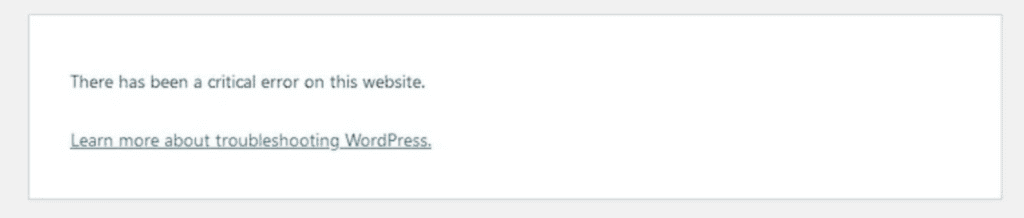 #WordPress Fatal error warning
Sounds final, but it is not. WordPress ships with a built-in safety net called Recovery Mode. This tool pauses the offending code, lets you back into the admin area, and lets you deactivate the broken theme or plugin before your audience even notices something was wrong.
So let’s turn that “critical error” screen into a quick pit stop instead of a full-blown crisis.
Do not try to solve the problem before you have the following access rights:
-
Web Hosting Credentials: You may require File Transfer Protocol (FTP) or File Manager access from your hosting control panel (cPanel or similar).
-
Backup or Staging Option: In an ideal world, you’d have a recent backup. If not, proceed carefully to avoid losing data.
Goal: The idea is to bypass or fix whatever’s causing the fatal error so you can open the WordPress admin area again.
2. Identify the Usual Suspects
A typical reason you can’t access WordPress admin with a fatal error warning is a code conflict, often from a plugin or theme. If you recall installing or updating something right before the error, that might be your culprit.
-
Plugins: Maybe you activated a brand-new plugin that isn’t playing nicely with your theme.
-
Themes: Sometimes, a theme update or a custom code snippet can break your site.
-
PHP Version: Outdated PHP or mismatch with your plugin requirements.
3. Disable Plugins (Without the Admin Panel)
If you suspect a plugin is behind the meltdown, you’ll need to disable it manually.
Using FTP or File Manager
-
Sign in to your hosting control panel or FTP client.
-
Go to /wp-content/plugins/ folder.
-
Rename the plugin folder you suspect, e.g., change wp-content/plugins/conflicting-plugin/ to wp-content/plugins/conflicting-plugin-disabled/.
-
Check Your Site: Try logging into your WordPress admin again. If the error vanishes, you’ve found the culprit.
Pro Tip: If you’re not sure which plugin caused the error, temporarily rename the entire plugins folder to plugins-disabled. This deactivates all plugins. Then restore them one by one until you find the bad apple.
4. Switch to a Default Theme (If the Theme Is the Problem)
In some cases, your theme might be throwing a fatal error:
-
Open File Manager or FTP: Head over to /wp-content/themes/.
-
Rename the Active Theme Folder: For example, awesome-theme becomes awesome-theme-off.
-
WordPress Defaults to a Core Theme: Something like Twenty Twenty-Three will load automatically.
-
Log in to your admin to confirm the error is gone.
5. Check Your PHP Version
If you are using an older PHP version and your theme or plugin needs a higher version, then you will get the fatal error message. You may be able to resolve the issue by changing your PHP settings:
-
Log into Hosting Panel: Look for a “PHP Settings” or “Select PHP Version” tool.
-
Upgrade to a Stable PHP Version: Typically, 7.4 or higher (depending on current WordPress recommendations).
-
Save & Test: Refresh your site to see if the error disappears.
6. Increase Your Memory Limit
Sometimes, WordPress runs out of memory, causing a fatal error. To boost it:
- Edit wp-config.php: Using FTP or File Manager, open wp-config.php.
define( 'WP_MEMORY_LIMIT', '256M' );
- Save and Check: If a lack of memory was the issue, you should now be able to access WordPress admin with a fatal error warning a thing of the past.
7. Activate Debugging to Get Clues
If you still can’t figure out the root cause, turn on WordPress debugging:
define( 'WP_DEBUG', true );
define( 'WP_DEBUG_LOG', true );
define( 'WP_DEBUG_DISPLAY', false );
- Check the Debug Log: Inside wp-content, a new file called debug.log will show error messages that might point you to the culprit.
If all else fails and you’re still locked out:
-
Contact Support: Your web hosting might spot server-level issues causing the fatal error.
-
Hire a Developer: If it’s complex custom code or a persistent error, a professional can sort it out faster than you can say “white screen of death.”
9. Tips to Prevent Future Fatal Errors
-
Test Updates in a Staging Environment: Before you click “Update Plugin” or “Update Theme,” try it on a test site.
-
Use Reputable Plugins/Themes: Check reviews, active installs, and last update date to avoid shady or abandoned code.
-
Keep WordPress & PHP Up to Date: Outdated software is a recipe for trouble.
Also Read: Common Server Problems
Conclusion
No one likes the “fatal error” roadblock, especially when you’re locked out of your own admin panel. But tackling how to access WordPress admin with a fatal error warning doesn’t have to be a nightmare. By disabling troublesome plugins or themes, checking your PHP setup, and upping your memory limit if necessary, you’ll be back in business in no time. Keep backups, test changes, and stay on top of updates to ensure these errors remain rare guests on your site.
Remember: a little precaution today can save a major headache tomorrow. Good luck, and happy WordPressing!