WordPress 7.1 dropped on August 19, 2026, officially released at WordCamp US. It's one of the meatier updates in recent memory, packing responsive styling, browser-based image processing, two new core blocks, and a redesigned image editor into a single release.
Whether you're running a WooCommerce store, managing a membership community, or building out a course platform, there's something in this update that directly affects how you work. Here's everything worth knowing.
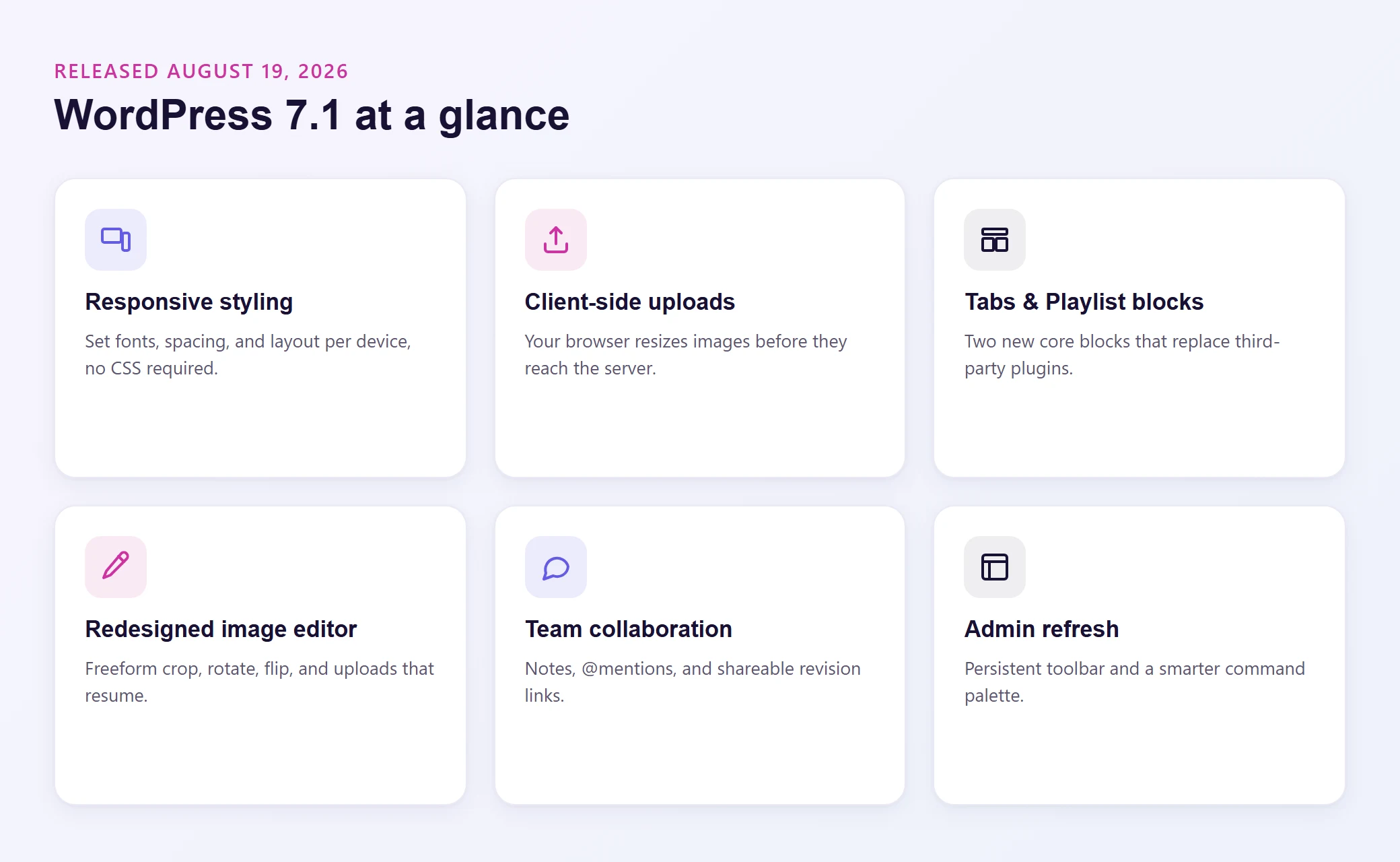
Responsive Styling Without Writing a Line of CSS
This might be the single most useful feature in WordPress 7.1 for anyone building pages in the Site Editor.
Before this update, making a heading 48px on desktop but 28px on mobile meant either writing custom CSS or relying on a page builder plugin. WordPress now handles it natively.
The Site Editor includes device preview toggles for desktop, tablet, and mobile. Switch to the mobile view, adjust your font sizes, spacing, or layout, and WordPress generates the responsive CSS automatically. You can also drag the canvas edges to create custom breakpoints, which is great for fine-tuning how content looks between standard device widths.
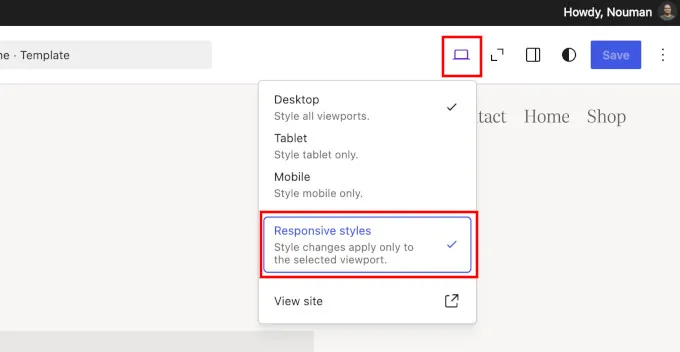
Your theme can even define custom breakpoints through theme.json, so the responsive styles snap to the exact widths that matter for your design.
For site owners who've been using page builders primarily for responsive controls, this closes a real gap in core WordPress.
Hover, Focus, and Active State Styling
WordPress 7.1 also introduces pseudo-state styling for interactive elements like buttons and links.
From the block sidebar, you can now set how a button looks when someone hovers over it, clicks it, or navigates to it with a keyboard. A simple "State" dropdown lets you toggle between default, hover, focus, and active states and style each one individually.
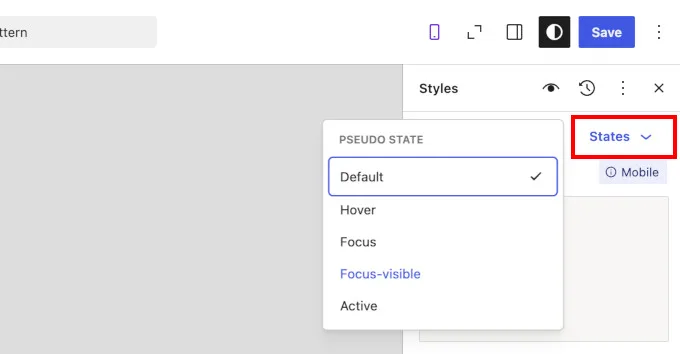
This is particularly useful for WooCommerce store owners who want polished "Add to Cart" interactions, or membership sites where call-to-action buttons need to feel responsive and clickable. Previously, even changing a button's hover color required custom CSS or a page builder.
Your Browser Now Handles Image Uploads
Here's a technical change that solves a very practical problem.
Before 7.1, every image you uploaded was processed on your server using PHP (through the GD or Imagick libraries). For small images, no big deal. But if you've ever tried uploading a 15MB product photo or a high-res hero image and hit the dreaded "PHP memory limit exceeded" error, you know the frustration.
WordPress 7.1 shifts image processing to your browser. Using a WebAssembly-compiled version of libvips, your browser handles resizing, compression, and thumbnail generation before the image ever reaches your server.
Here's what that means in practice:
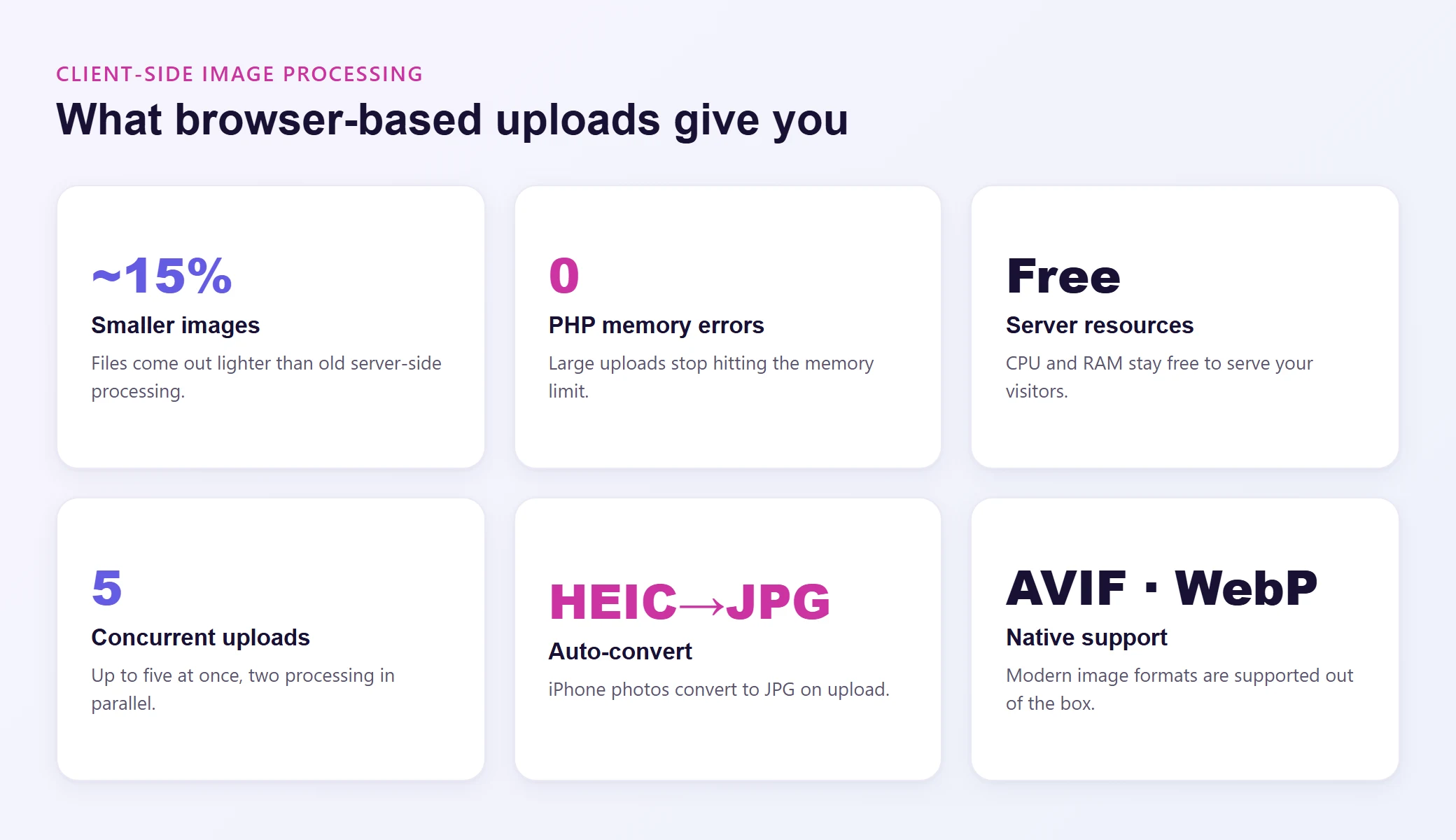
Images come out roughly 15% smaller compared to the old server-side processing
No more PHP memory errors on large uploads
Your server's CPU and RAM stay free for actually serving your site to visitors
Up to 5 concurrent uploads with 2 simultaneous processing operations
HEIC photos from iPhones automatically convert to JPG
AVIF and WebP formats are now supported natively
One thing to know: full browser support currently requires Chrome 137+ or Edge 137+ on desktop. Safari and Firefox don't fully support the required WebAssembly features yet. For those browsers, WordPress falls back to server-side processing automatically, so nothing breaks.
For sites with large media libraries (product catalogs, course content, community galleries), this is a genuine quality-of-life improvement.
A Redesigned Image Editor
WordPress 7.1 ships a completely overhauled image editor modal.
The previous editor did its job, but it felt dated. The new version supports freeform cropping, preset aspect ratios, rotation, horizontal and vertical flipping, and metadata editing. It all lives in a dedicated modal that feels more like a lightweight design tool than the clunky overlay it replaces.
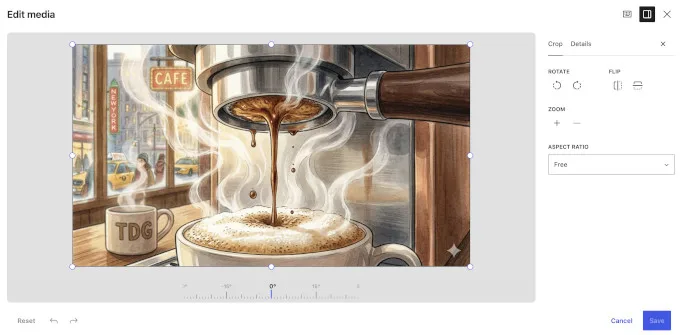
You also get a magnified crop view for precision editing and the ability to edit images directly within Cover blocks.
Another practical addition: resilient uploads that automatically pause and resume if your connection drops mid-upload. If you've ever lost a batch upload because your Wi-Fi blipped for a second, you'll appreciate this one.
And a small but meaningful accessibility win: you can now mark images as "decorative" with a toggle, which tells screen readers to skip them entirely.
Two New Core Blocks: Tabs and Playlist
WordPress 7.1 adds two blocks that many site owners have been installing third-party plugins to get.
Tabs Block
The Tabs block organizes content into clickable panels. Product specifications, FAQ sections, course module overviews, pricing comparisons: any scenario where you have categorized content that benefits from a compact, tabbed layout.
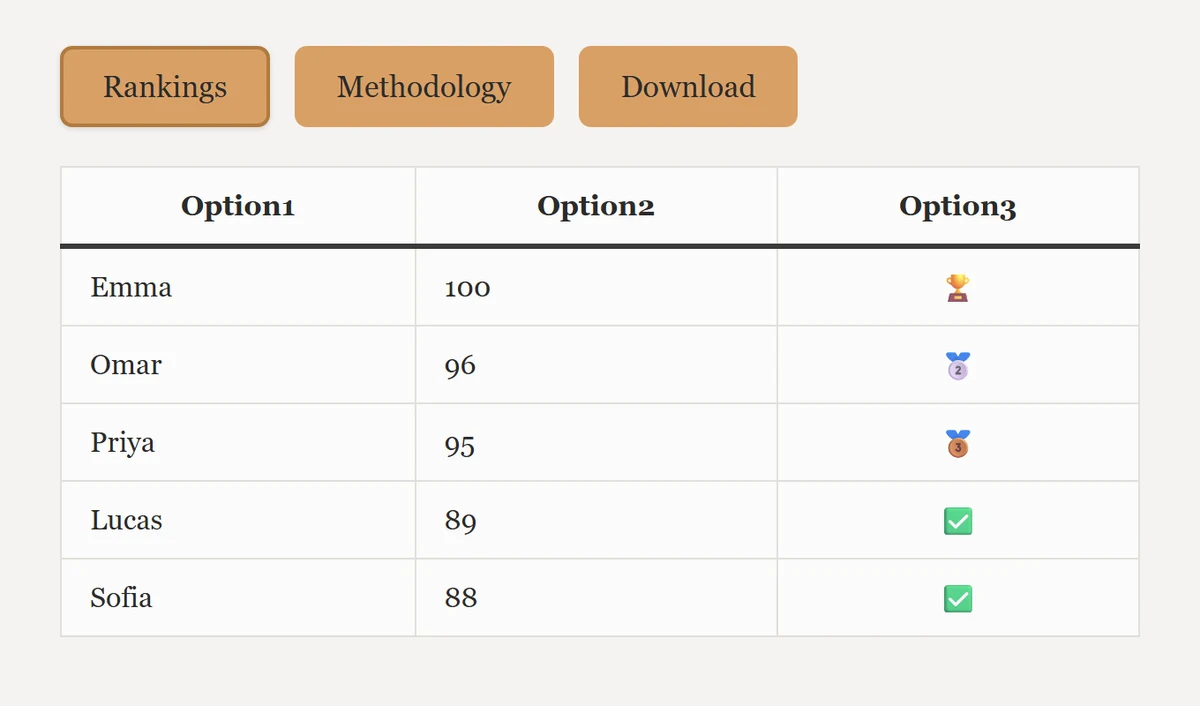
The implementation follows W3C accessibility guidelines, meaning keyboard navigation and screen readers work correctly out of the box. You can nest any block type inside each tab panel and reorder tabs using toolbar buttons.
For WooCommerce stores, this is a natural fit for product detail pages. For course sites, it works well for organizing module content or lesson resources by category.
Playlist Block
The Playlist block is built for audio content. Podcasts, audio courses, music samples: this block displays your tracks with metadata (title, artist, album art) and includes customizable waveform visualization.
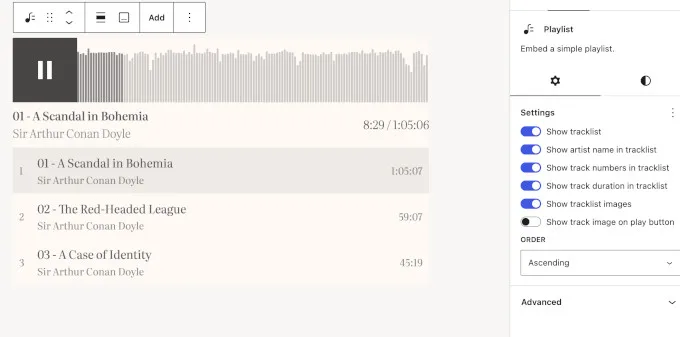
Previously, embedding multiple audio files required shortcodes or a third-party plugin. Now it's a native block with a proper player interface, full styling controls for typography, background, and dimensions, and support for every audio MIME type registered on your site.
Collaboration Upgrades: Notes, @Mentions, and Revisions
WordPress has been building toward real team collaboration for several releases, and 7.1 makes meaningful progress.
Notes now support rich text formatting (bold, italics, links, emojis), inline text selection (highlight specific words and attach a comment, not just an entire block), and @mentions that trigger email notifications to tagged collaborators. You can attach multiple notes to the same block, and long notes collapse by default to keep the editor clean.
Visual revisions also get shareable links. You can copy a URL to a specific version of your post and share it with a collaborator, who'll see a color-coded view of what changed.
For teams managing content across membership sites, course platforms, or multi-author blogs, these features reduce the back-and-forth that typically happens in external tools before content ever makes it into WordPress.
Admin Interface Gets a Facelift
You'll notice several visual changes the moment you log into WordPress 7.1.
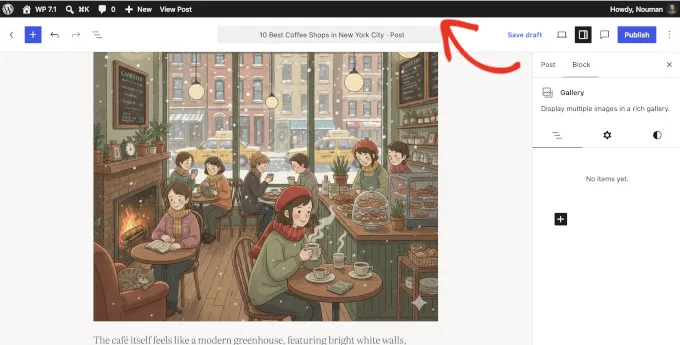
The admin bar now stays visible in both the Post Editor and the Site Editor. Previously, it would disappear when you entered the editor, making it harder to navigate back to the dashboard or jump to other admin pages. The toolbar also sports redesigned SVG icons (replacing the older Dashicons), circular profile avatars, and a back chevron replacing the old WordPress "W" logo.
Smarter Command Palette
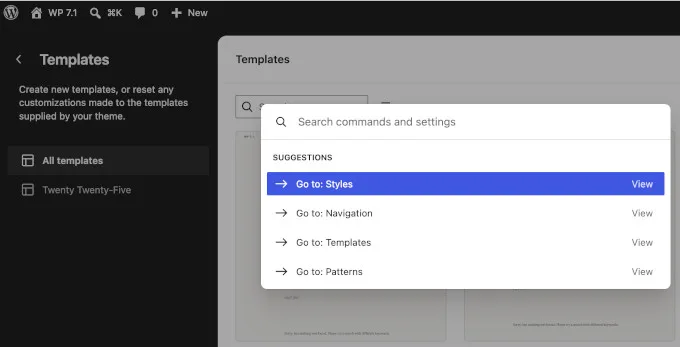
The command palette (Cmd+K or Ctrl+K) is reorganized into three sections: Recent, Matching, and Suggestions. It now remembers your recent commands across sessions and surfaces contextual suggestions based on what you're currently editing.
Color Scheme Consistency
Your chosen admin color scheme now extends to the Site Editor. If you use "Midnight" or "Sunrise," the editor sidebar will match instead of defaulting to black. A small detail, but it makes the whole experience feel more cohesive.
New Identity Screen
A new Design > Identity section in the Site Editor puts your site title, tagline, logo, and site icon in one place. Previously, these settings were scattered across the Customizer and various editor panels.
List View Improvements
The Posts list view now shows excerpts for easier scanning, and you can shift-click to select multiple posts for bulk actions.
Under the Hood: Developer Highlights
A few notable changes for developers and site builders who work with code:
Abilities API enhancements: Four new lifecycle filters for intercepting and transforming ability execution. Enhanced filtering lets you query abilities by category, namespace, and metadata. These improvements make AI-driven operations more granular and secure.
Design tokens and ThemeProvider: A new wordpress/theme package introduces CSS custom properties following a "WPDS" naming pattern, plus a React ThemeProvider component that auto-generates color ramps from seed colors.
jQuery UI updated to 1.14.2. Test any admin-facing plugins that rely on jQuery UI, as behavior changes are possible.
SVG icon system: A public API lets plugins and themes register custom icon sets with strict SVG sanitization.
Post editor is always iframed for consistency, even with older meta boxes (requires Block API version 3).
Faster editor startup through preloaded REST API requests that reduce initialization time.
What This Means for Your WordPress Site
WordPress 7.1 is a solid release across the board.
If you're running a content-heavy site (membership community, course platform, multi-author blog), the responsive styling controls and new Tabs block give you more design flexibility without installing additional plugins. The image editor and client-side processing make media management genuinely smoother, especially for sites with growing media libraries.
For WooCommerce stores, the hover state styling, Tabs block (perfect for product details), and reduced server load from browser-based image processing all contribute to a better building and shopping experience.
The collaboration features signal that WordPress is getting serious about team workflows. If you've been relying on external tools for content review and feedback, it's worth revisiting what WordPress can handle natively now.
And since client-side image processing offloads work from your server, more of your hosting resources go toward fast page delivery through the CDN edge rather than crunching image thumbnails on every upload.
Before you update: Back up your site, test on staging first (especially if you run custom code or older plugins), and verify that your critical plugins have confirmed WordPress 7.1 compatibility.
Wrapping Up
WordPress 7.1 delivers improvements that matter for everyday site owners, not just developers. The responsive styling controls alone eliminate a major reason many people reach for page builder plugins. Client-side image processing solves real frustrations (goodbye, PHP memory errors), and the new Tabs and Playlist blocks fill two of the longest-standing gaps in core WordPress.
Test it on staging, confirm your plugins are ready, and update when you're confident. Your site and your workflow will be better for it.