There's a new tab in your Levamo dashboard today: AI Management. Connect a site once, and the AI assistant you already use, whether that's ChatGPT, Claude, or Cursor, can create, update, and understand your WordPress site through a simple conversation.
No new dashboard to learn, nothing to install yourself, no passwords to copy out of wp-admin. You say what you want in plain English, and the work lands on your site.
Under the hood, AI Management is powered by WPVibe, which connects WordPress sites to AI assistants through MCP, the open standard that lets AI tools work with other software. On Levamo it's built directly into your dashboard, so connecting a site takes a couple of clicks instead of a developer project.
What You Can Ask It to Do
Once a site is connected, you brief your AI the way you'd brief a team member:
- "Draft our Black Friday post and schedule it for Monday." The post shows up in WordPress as a scheduled draft, with the SEO title and meta description already filled in.
- "Update all our plugins." Your assistant updates them one at a time, checks the site after each one, and logs the changes for your review.
- "Redesign our homepage, make it feel modern." The new version is saved as a draft with a preview link. Your live homepage stays untouched until you approve it.
- "Change blog permalinks to /blog/post-name." The structure changes, and 301 redirects are added from every old URL.
It covers the parts of WordPress you actually touch: posts and pages, media, plugins and themes, WooCommerce, SEO, even theme files. And it works alongside the tools you already build with, including Elementor and Divi.
Works with the AI You Already Use
You don't have to adopt a new chatbot. AI Management meets you in whichever assistant is already open on your screen.
The dashboard includes step-by-step connection instructions for five clients: Claude.ai, Claude Desktop, Claude Code (a single terminal command), ChatGPT (via the WPVibe app in ChatGPT's app directory), and Cursor. Using Gemini, Grok, Perplexity, or another MCP-compatible assistant? WPVibe's setup guides cover those too.
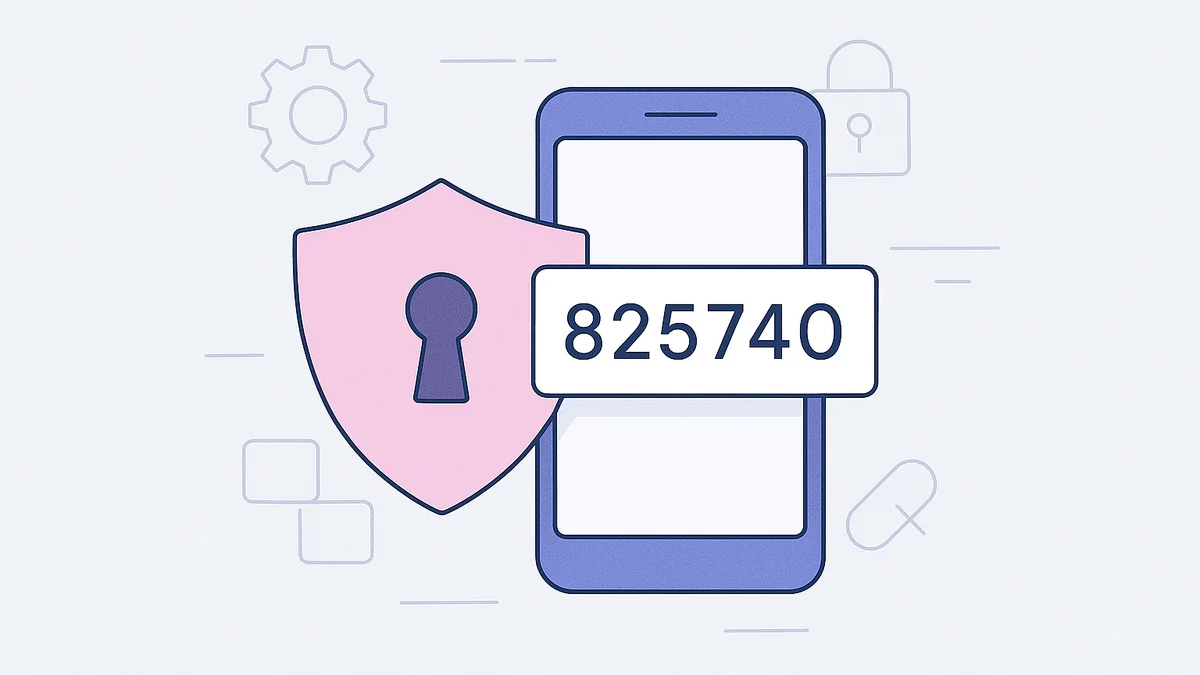
The flow is the same everywhere: copy your site's connection URL from the dashboard, paste it into your assistant, and sign in with your email. A 6-digit code arrives with the code right in the subject line, so there's no link to hunt for.
Safe by Design
Letting an AI touch a live site is a real decision, so the whole system is built draft-first:
- New content lands as drafts. Posts and page redesigns wait for your review; nothing goes live without you.
- Deletes go to trash, so nothing disappears permanently by accident.
- Destructive operations require your approval before they run, with a preview of what will change.
- Changes are logged, so you can always review what your assistant did.
The connection itself is locked down too. WPVibe signs in to your site with a dedicated, automatically managed application password that only WPVibe stores. You never see it, you never handle it, and disconnecting the site revokes it.
Connections are also personal: each team member connects with their own WordPress admin account. Disconnecting yourself removes your access only, and you can connect again at any time.
How to Connect a Site
- Log in to your Levamo dashboard, open a site, and click AI Management.
- Create a Platform API key with the name and expiry you want, or choose one you already have.
- Click Connect. We verify the site with WPVibe and install the connector for you, so there's nothing to set up inside WordPress.
- Follow the three steps on the Instructions tab: copy your connection URL, add it to your assistant, and paste in the ready-made first prompt.
That first prompt is worth a mention. It's pre-filled with your site's address and asks your assistant to confirm the connection, look around read-only, and come back with a first-run overview: what it found, what it can do on this site, the most important improvements, and the safest first action. It changes nothing on the site; it just introduces your assistant to it.
One more detail: if a restore, clone, or migration ever removes the connector plugin, the AI Management tab notices and offers a one-click Repair connection that reinstalls it using the credentials we already hold. No starting over.
API Keys for Your Team
AI Management runs on a new account-level feature that's useful in its own right: API keys, now in your account settings.
- Keys are per team, and each one acts as your current role on that team. Change someone's role and their keys follow automatically.
- You choose the expiry: 30, 90, 180, or 365 days, or never.
- The full key is shown exactly once, at creation. Copy it and store it somewhere safe.
- Rotate or revoke at any time. Before you confirm, the dialog names the exact sites that will be disconnected, so you know the impact before you click, not after.
Team owners and administrators also get two new permissions to grant: one for managing sites with AI assistants, and one for managing API keys. Access is opt-in per member, and the team roster now shows at a glance who has which.
Available Today
AI Management is live in your dashboard now. Log in, open a site, click AI Management, and connect.
The first thing to try: paste the starter prompt from the Instructions tab. Your assistant will introduce itself to your site, tell you what it can do, and suggest a safe place to start.