Storage is usually the quietest line on a hosting plan until you clone a site. A production site with years of images, PDFs, and video can run its uploads folder into the tens of gigabytes, and creating a staging copy doubles that overnight. If the staging site is also being backed up, the same media gets counted again in every backup.
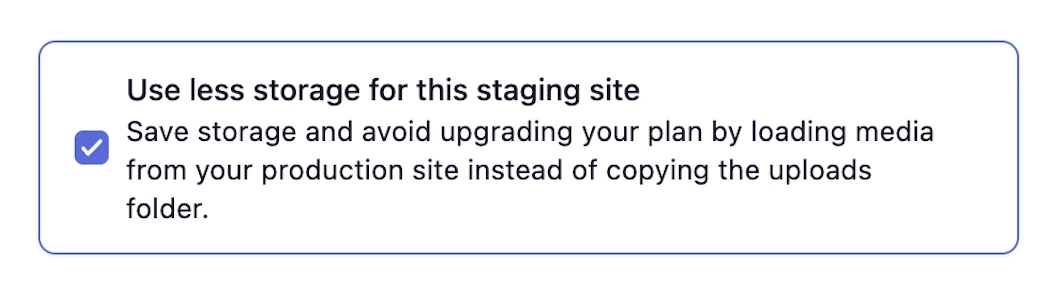
There is now a way around that. When you create a staging site, or rebuild an existing one, you will see a new option: Use less storage for this staging site.
What It Does
Tick the box and Levamo clones your site without copying wp-content/uploads. Everything else comes across as usual: the database, themes, plugins, and the rest of your code.
Your media still shows up. When the staging site is asked for a file that lives in the uploads folder, it redirects the request to the same file on your production site, so images and downloads load where you expect them. The files are served from production rather than stored a second time.
The result is a staging site that carries the weight of your code and database but not your media library. On most sites the uploads folder is the bulk of the storage, so this is often the difference between staying on your current plan and paying for space you only needed because of a test environment.
Backups Count Too
Site storage is not the only cost. If a staging site has automatic backups running, every one of those backups includes the media as well, so a large uploads folder gets multiplied again.
The same dialog has a separate Turn off automatic backups option sitting next to this one. The two are independent settings, so pick whichever combination suits the site. If storage is the thing you are trying to claw back, using both together gives you the leanest staging site possible. Automatic backups can be switched back on any time from the staging site's Backups tab, and your production site's backups are never affected by either option.
Hosting built for WordPress
Forget server management and enjoy lightning-fast, fully managed WordPress hosting. Focus on growing your site while we handle the rest.
Try for $1
Where to Find It
The option shows up in two places:
- Creating a staging site: in the Add a staging site dialog, next to the backups option.
- Rebuilding a staging site: the same dialog opens when you click Rebuild, pre-filled with the choices you made last time.
Both boxes start unticked on a brand new staging site, so nothing changes for staging sites you already have until you rebuild one and choose it.
When It Will Not Work
Some plugins expect a real copy of the uploads folder and will not follow a redirect to production. Community plugins are the usual case, because their media is permission based. In BuddyBoss, for example, who can see a photo depends on whether you are friends with the person who posted it, or whether you are in the group it was shared to. Handling that means doing some nonstandard things with how media is stored and served, and those things do not always survive the redirect. On a site like that you may see media issues on staging.
That is why a warning appears in the dialog as soon as you tick the box. It is not a guess about your specific setup, just a heads up that this trade-off does not suit every site.
If something does look wrong, the fix takes one click. Rebuild the staging site with the option turned off and you are back to a full copy, media included.
Give It a Try
If you have a media-heavy site and a staging copy sitting next to it, this is worth a look. Open your site in the Levamo dashboard, create or rebuild your staging site, and tick Use less storage for this staging site.
Questions about whether it fits your setup? Our support team is available 24/7 via live chat.