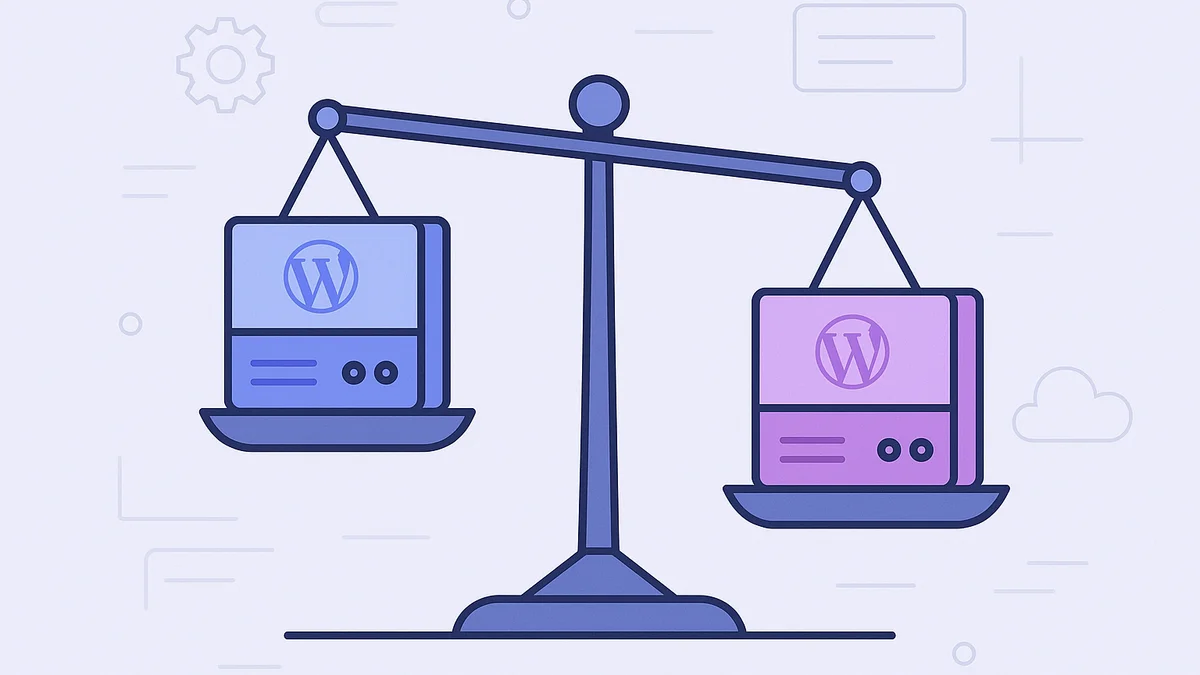
Keeping your WordPress site running smoothly often comes down to how well you manage your server resources - especially server memory limit. If you’ve encountered “white screen of death” or a “Fatal error: Allowed memory size exhausted,” that’s your cue to check your memory and max execution settings. In this guide, we’re discussing what the memory limit for PHP Server is, why it’s an important factor, and how you can tweak your PHP configurations without any headaches.
What Exactly Is the Maximum PHP Memory Limit?
Your WordPress site is powered by PHP scripts that handle everything from loading themes to running plugins. The maximum PHP memory limit sets the upper boundary for how much memory these PHP processes can use before the server says, “Enough!” If your site demands more memory than the limit allows, you’ll likely see errors or a sluggish experience for visitors.
It’s kind of like setting a maximum water level in a tank - if your WordPress “tank” runs dry, tasks stall out and you’ll notice slow page loads or outright crashes.
Why the Maximum PHP Memory Limit Matters
-
Prevents Crashes When your site’s processes exceed the memory limit, they can’t complete their tasks - leading to error messages or blank pages.
-
Ensures Stability A well-allocated memory limit helps WordPress carry out operations (like loading heavy plugins, media-rich pages, or complex queries) without draining server resources.
-
Improves Performance The right balance keeps your site speedy. Too low a setting can choke your site, while going too high might deprive other processes on the server.
Increasing the Maximum PHP Memory Limit in WordPress
Before you start editing files, it’s wise to back up your site. If anything goes wrong, you’ll have a safety net to restore your previous configuration.
1. Edit wp-config.php
Locate Your WordPress Files
- Use your hosting control panel or FTP to open your WordPress installation directory (often named public_html).
Open wp-config.php
- Look for a file called wp-config.php in the root folder. Right-click (or equivalent) to edit it.
Set Your Memory Limit
- Find the comment that says
/* That's all, stop editing! Happy publishing. */.
Just above that line, insert:
define( 'WP_MEMORY_LIMIT', '256M' );
- This line tells WordPress the maximum PHP memory limit is 256 MB. Adjust as you see fit - for instance, 128M or 512M.
Save and Upload
- Once saved, your site should start using the new memory limit instantly.
Hosting built for WordPress
Forget server management and enjoy lightning-fast, fully managed WordPress hosting. Focus on growing your site while we handle the rest.
Adjusting the Max Execution Time
While you’re revisiting your PHP settings, you might as well look at your max execution time, another factor that influences your site’s stability and speed. If a script runs too long, it could stall out or hog server resources.
Find .htaccess
-
In your WordPress root directory, locate the hidden file named .htaccess. You may need to enable “Show Hidden Files” in your file manager.
-
Edit the File
Add a line at the bottom, such as:
php_value max_execution_time 60
- This grants a 60-second window for PHP scripts to run. Adjust the number for your needs (but be mindful not to set it too high).
Save and Test
- After saving, load your site to ensure everything is still functional.
Common Pitfalls to Avoid
-
Over-Allocating Memory: While setting a high memory limit for PHP server might seem like a quick fix, it can deprive other processes on your server if your hosting environment is limited. Strike a balance.
-
Forgetting to Back Up: Editing WordPress core files or config files without a backup is risky. Always keep a recent backup handy.
-
Plugin Conflicts: Sometimes the real culprit isn’t your memory limit, but a poorly coded plugin. If you keep running out of memory, audit your plugins to find any resource hogs.
Final Thoughts
Managing your memory limit and other PHP settings (like max execution time) is an essential step in optimizing your WordPress site. By allocating enough memory and capping how long scripts can run, you’ll avoid errors, improve performance, and create a smoother experience for visitors.
Keep in mind that every WordPress site is unique - what works for one might be overkill for another. Regularly check your server resource usage, monitor site health, and adjust the memory limit as your content or traffic evolves. With a well-tuned environment, you’ll keep your WordPress site humming along without those pesky crashes or slowdowns.