Your Levamo dashboard is the control center for your websites, DNS, billing, and team access. A strong password is a good start, but passwords can be phished, leaked in a data breach, or cracked through brute force. If someone gets past your password, they get the keys to everything.
That is why two-factor authentication (2FA) is now available on every Levamo account.
When you enable 2FA, signing in requires two things: your password and a time-sensitive six-digit code from an authenticator app on your phone. Even if your password is compromised, your account stays locked without that second factor.
Here is how to set it up, how to manage it, and what to do if you ever lose access.
What You Need Before You Start
You will need an authenticator app installed on your phone or another device. Any app that supports time-based one-time passwords (TOTP) will work. Popular options include:
- Google Authenticator (Android, iOS)
- Authy (Android, iOS, Desktop)
- 1Password (built-in authenticator)
- Microsoft Authenticator (Android, iOS)
Download and install the app before starting the setup. The whole process takes about two minutes.
How to Enable 2FA on Your Levamo Account
Step 1: Open Account Security
Log in to your Levamo dashboard. Click your account name in the top-left corner, then go to Account. Select the Security tab.
Under the Two-factor authentication (2FA) section, click Enable two-factor authentication.
Step 2: Scan the QR Code
A setup modal will appear with a three-step wizard: Scan, Verify, and Backup codes.
Open your authenticator app and scan the QR code displayed on screen. If your app cannot scan the code, or you prefer to set it up manually, copy the setup key shown below the QR code and enter it directly in your app.
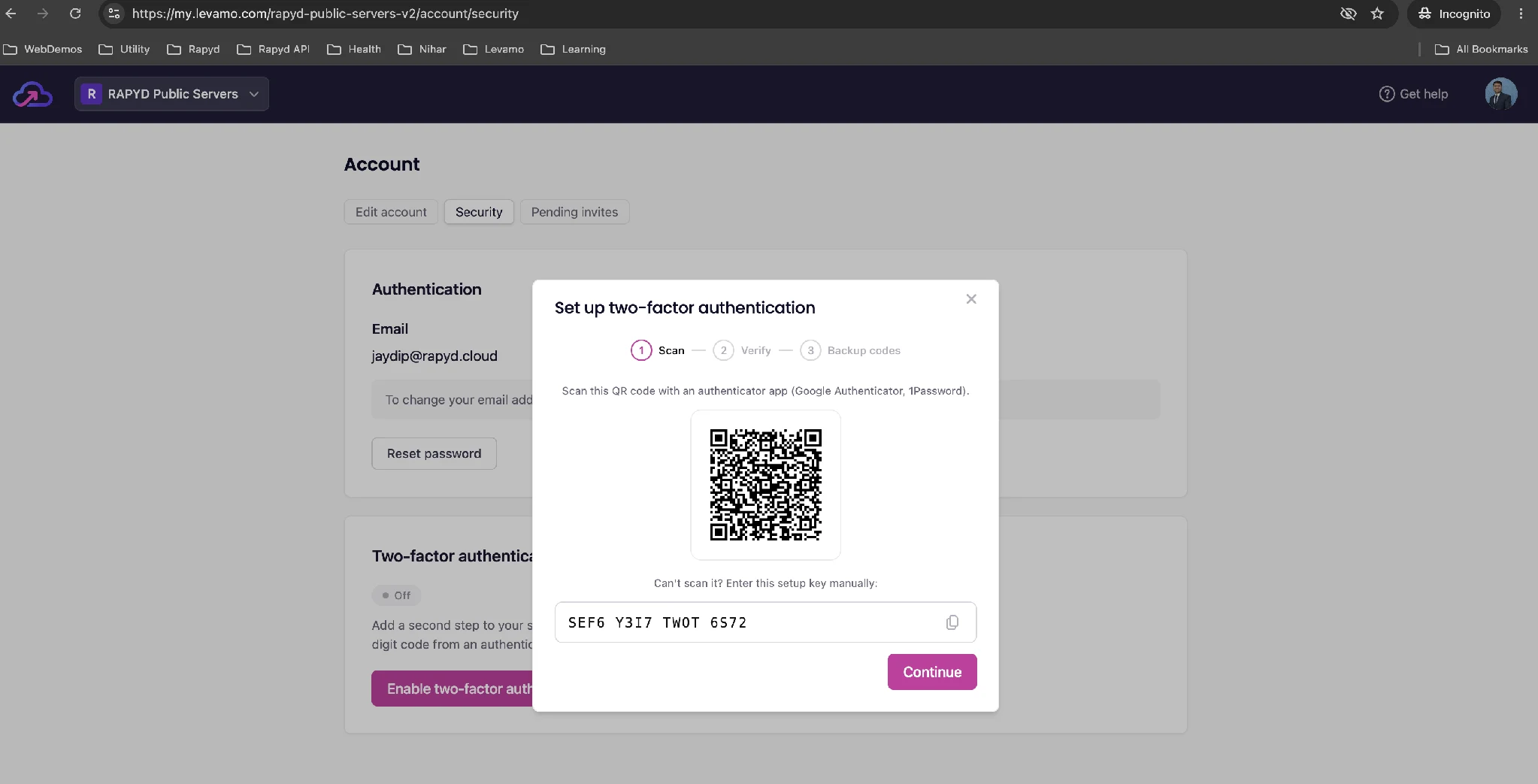
Once scanned, your authenticator app will start generating six-digit codes that refresh every 30 seconds.
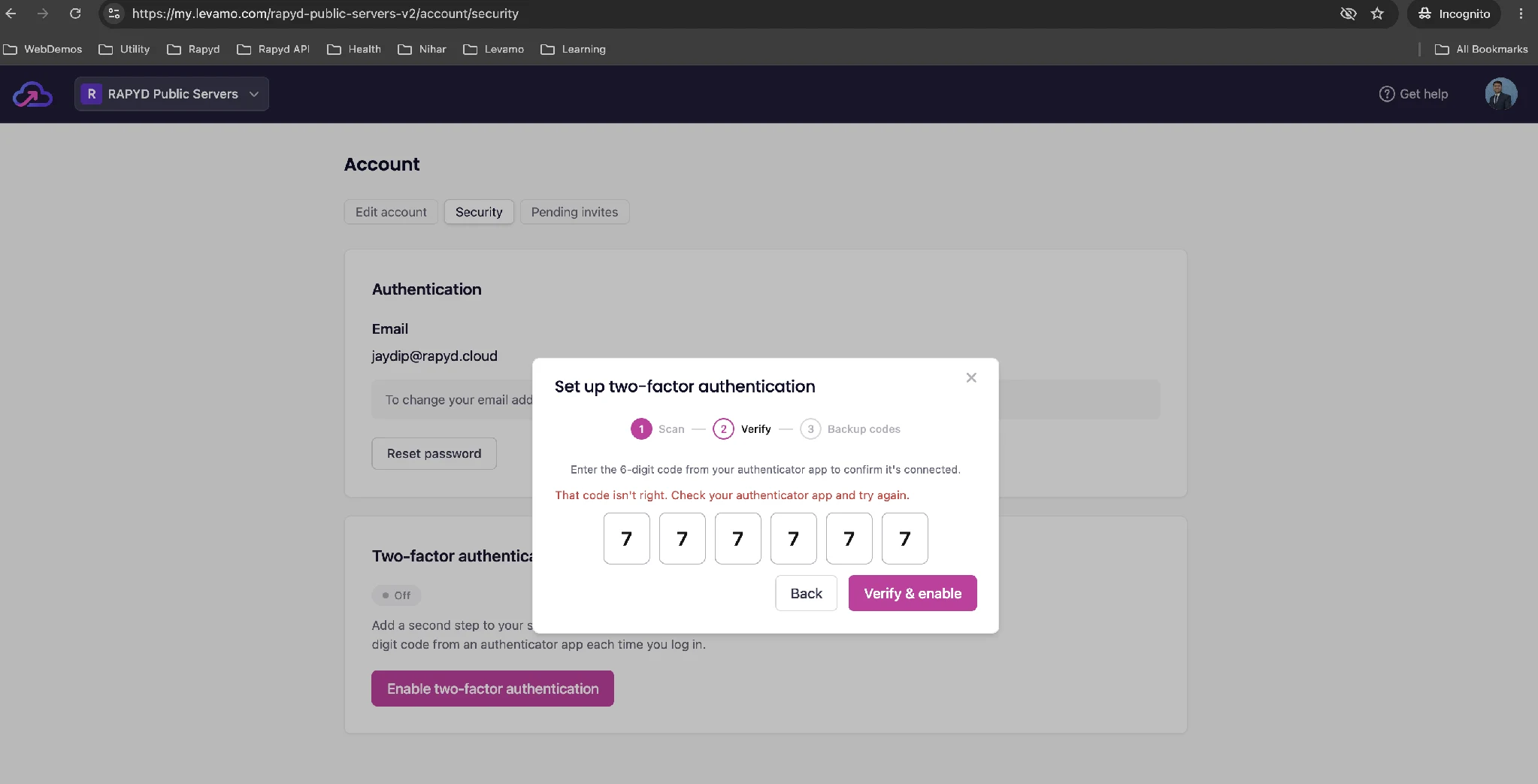
Step 3: Verify Your Code
Enter the six-digit code currently displayed in your authenticator app and click Verify & enable.
If the code is incorrect, you will see a message asking you to check your authenticator app and try again. Make sure you are entering the most recent code, as they expire quickly. If codes keep failing, check that your device's clock is set to automatic. TOTP codes depend on accurate time sync between your phone and the server, so a clock that is off by more than 30 seconds can cause repeated failures.
Step 4: Save Your Backup Codes
After successful verification, Levamo will display eight one-time backup codes. These are your safety net. If you ever lose access to your authenticator app (for example, a lost phone, a factory reset, or a device swap), you can use one of these backup codes to sign in instead of a six-digit code.
Save these codes now. Store them in a password manager, write them down, or keep them in a secure location separate from the device running your authenticator app. Each backup code can only be used once.
What Changes After You Enable 2FA
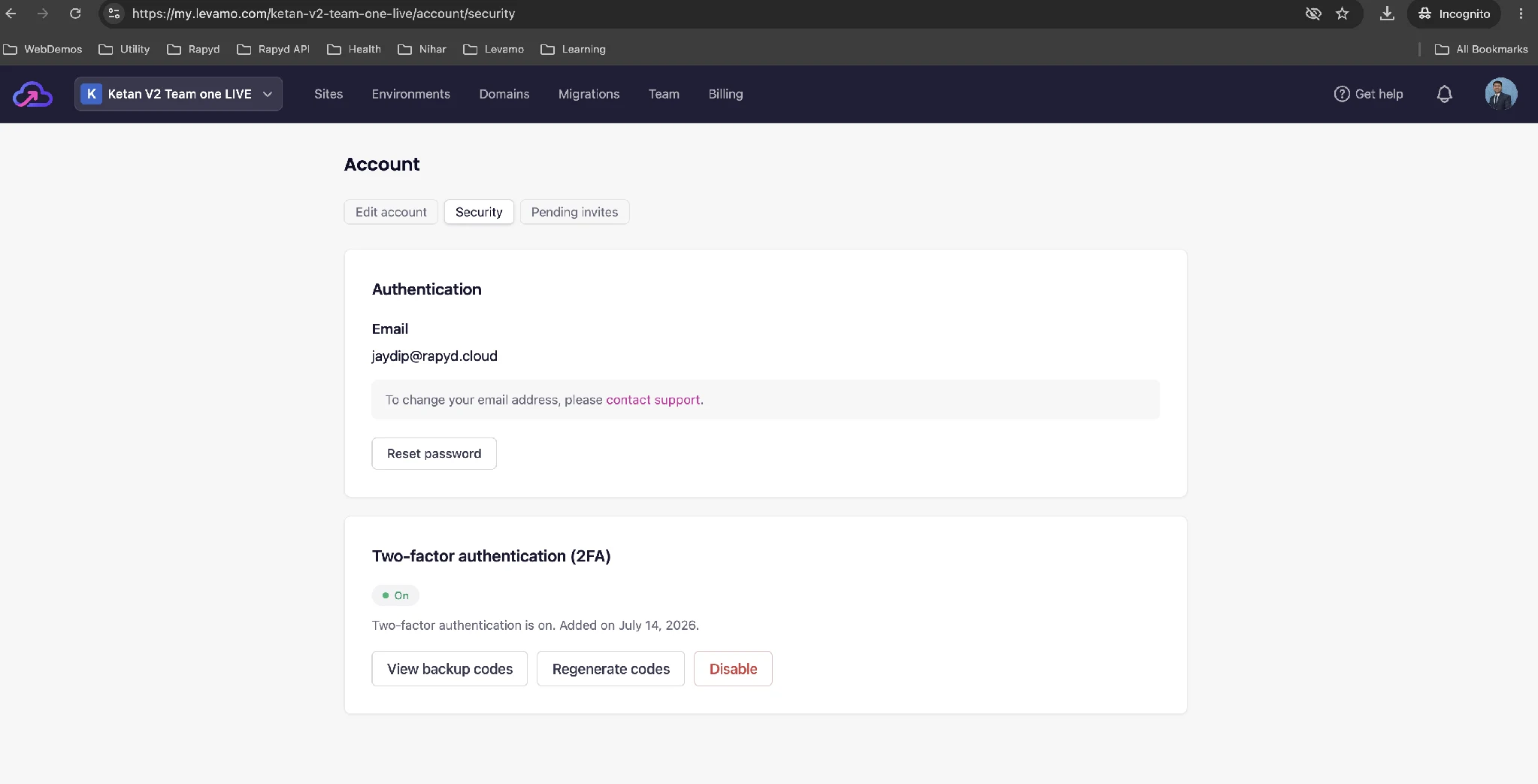
Once 2FA is active, every sign-in to your Levamo account requires both your password and a six-digit code from your authenticator app. This applies whether you log in with email and password or through social sign-in.
Your Security page will now show 2FA as On, along with the date it was enabled and three management options:
- View backup codes to check your remaining unused codes
- Regenerate codes to create a fresh set (this invalidates all previous codes)
- Disable to turn off 2FA entirely
Each of these actions requires you to re-confirm your identity with your password or a current code, so no one can quietly disable your 2FA without your credentials.
Team 2FA Visibility
If you manage a team on Levamo, the Team page now includes a 2FA column that shows whether each member has 2FA enabled or disabled. This gives account owners a clear view of their team's security posture at a glance, without needing to check each member's settings individually.
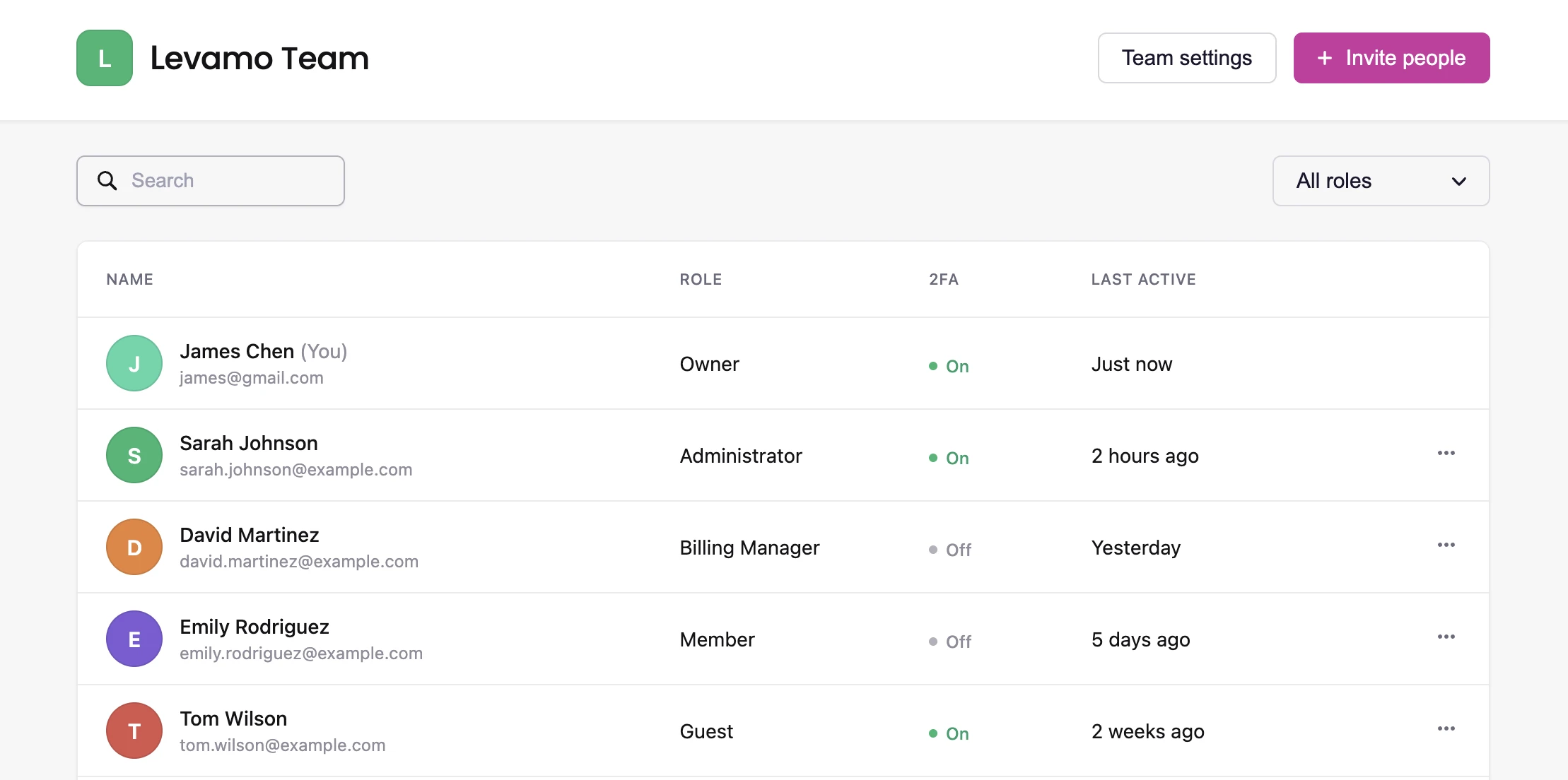
2FA is currently opt-in for all users. Each team member enables it individually from their own Account Security page. Admin-enforced 2FA, where account owners can require all members to enable 2FA before accessing the dashboard, is coming in a future update.
What If You Lose Access to Your Authenticator App?
If you lose your phone or switch devices without transferring your authenticator setup, use one of your saved backup codes to sign in. After logging in, you can disable 2FA on the Security page and re-enable it on your new device.
If you have lost both your authenticator app and all of your backup codes, contact Levamo support. The support team can reset your 2FA, which will sign you out of all active sessions and send you an email to sign back in and re-enroll. You will still need your account password to complete the sign-in, so email access alone is not enough for someone to take over your account.
Tip: When switching phones, set up your authenticator app on the new device before wiping the old one. Most authenticator apps also support cloud backup or account transfer features that make the switch painless.
Why Authenticator Apps, Not SMS or Email?
Levamo uses authenticator-app (TOTP) based 2FA rather than SMS or email codes. Here is why that matters:
- SMS codes are vulnerable to SIM-swapping attacks, where an attacker convinces your carrier to transfer your phone number to their device. Once they have your number, they receive your codes.
- Email codes are only as secure as your email account. If your email is compromised, email-based 2FA provides zero additional protection.
- Authenticator apps generate codes locally on your device. Nothing is transmitted over the network, so there is nothing to intercept. The codes refresh every 30 seconds and are tied to a secret key stored only on your device and Levamo's server.
For an account that controls your websites, your customer data, and your billing, authenticator-app 2FA is the strongest practical choice.
Enable 2FA Today
Setting up two-factor authentication takes two minutes and significantly raises the bar for anyone trying to access your account without permission.
Log in to your Levamo dashboard, head to Account > Security, and turn it on.
If you have questions or need help with setup, our support team is available 24/7 via live chat.